How do I customise menus on my device?
The menus on your activity tracker can be changed through the Fitbit app on your mobile device.
Android1. Open the Fitbit app on your mobile device.
2. Choose
Account.
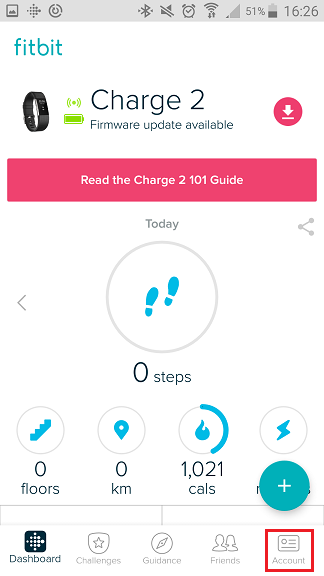
3. Choose your tracker.
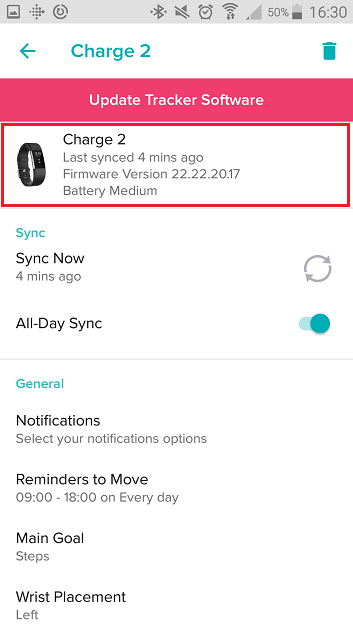
4. Choose
Menu items.

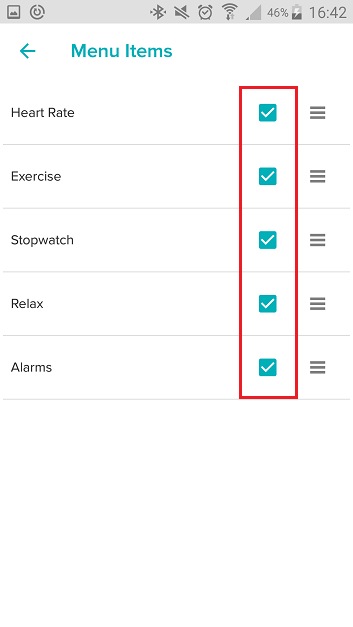
5. Choose the checkboxes to select or deselect each menu item.
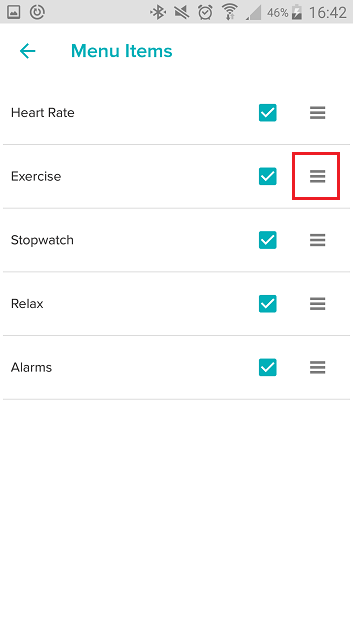
5.1 Press and hold on a menu item and move up or down the list, to change the order of the menu items.
6. Keep your tracker next to your mobile device to sync and save the changes.
iOS1. Open the Fitbit app on your mobile device.
2. Choose
Account.

3. Choose your tracker.
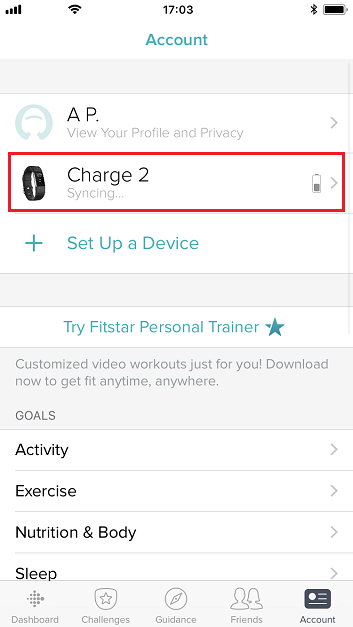
4. Choose
Menu Items.

5. Choose the checkboxes to select or deselect each menu item.

5.1 Press and hold on a menu item and move up or down the list, to change the order of the menu items.
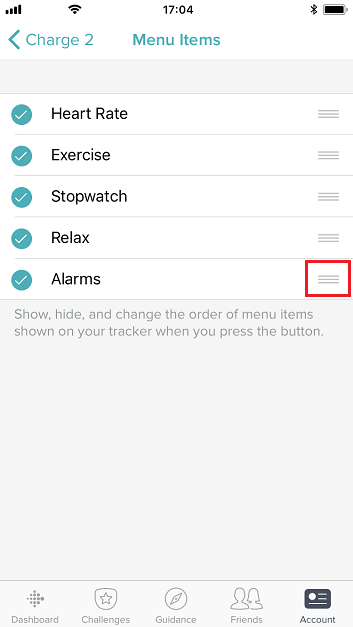
6. Keep your tracker next to your mobile device to sync and save the changes.

